BounceButtonExample
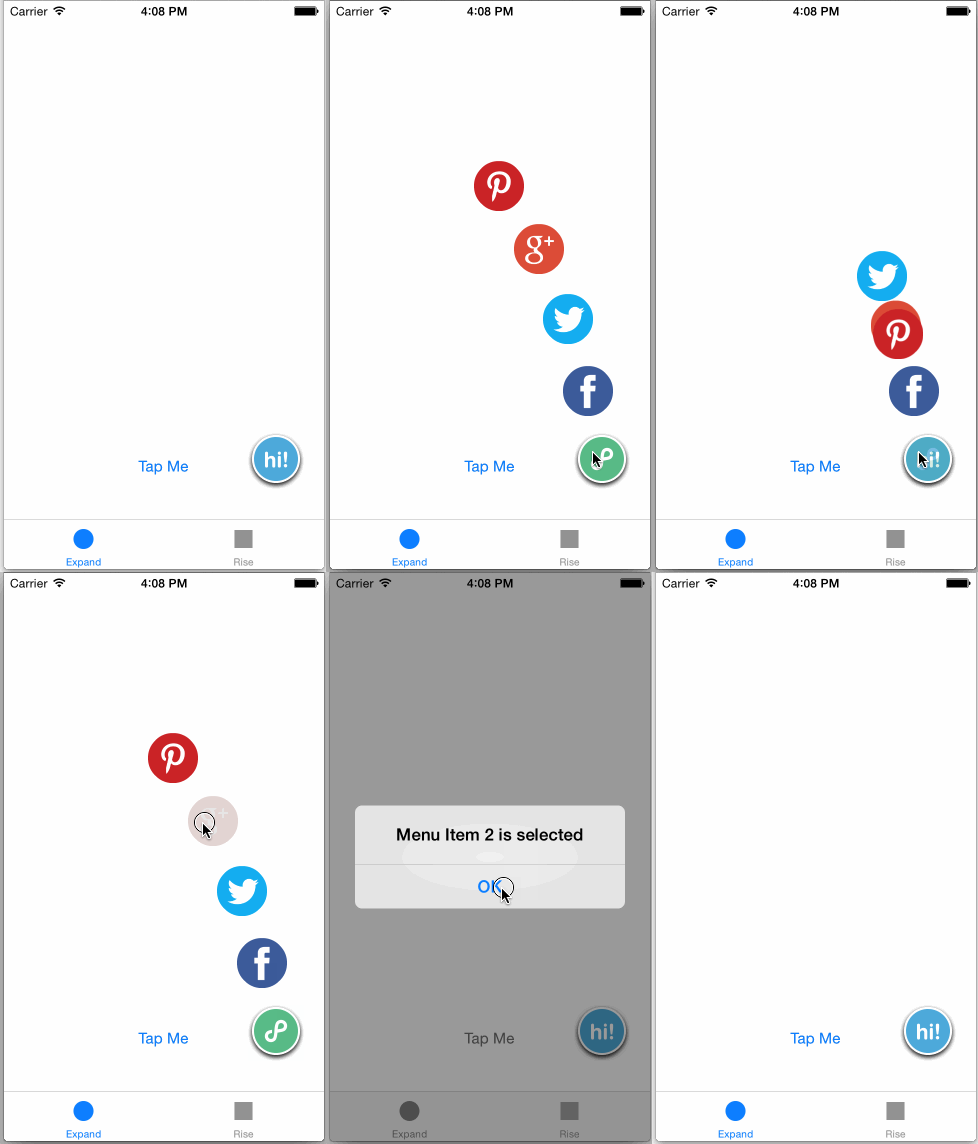
This App shows the implementation of buttons with bounce effect as menu items.
How To
Integrate the library
Add these lines in the Podfile:
platform :ios, '7.0'
pod 'ASOAnimatedButton'
Storyboard
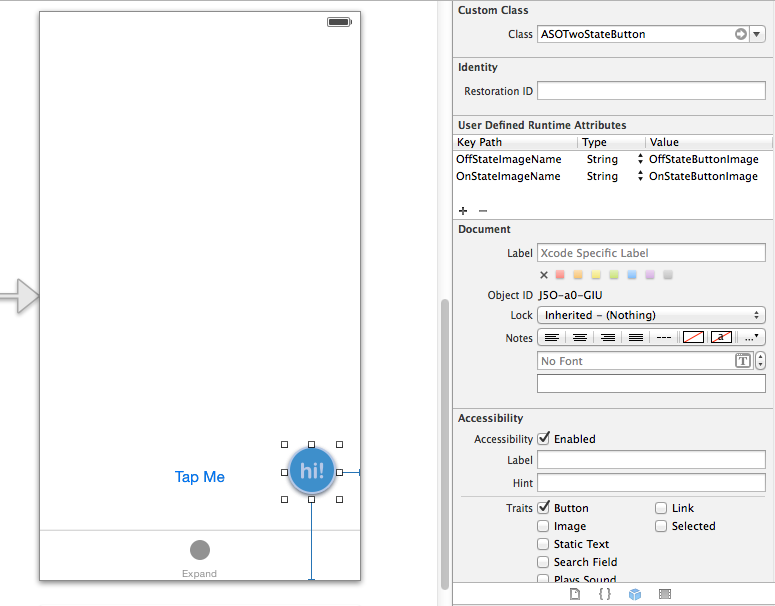
Menu Button with Two-State effect
Define each image name as values of OnStateImageName and OffStateImageName keys in User Defined Runtime Attributes of the ASOTwoStateButton object.
Menu Item View
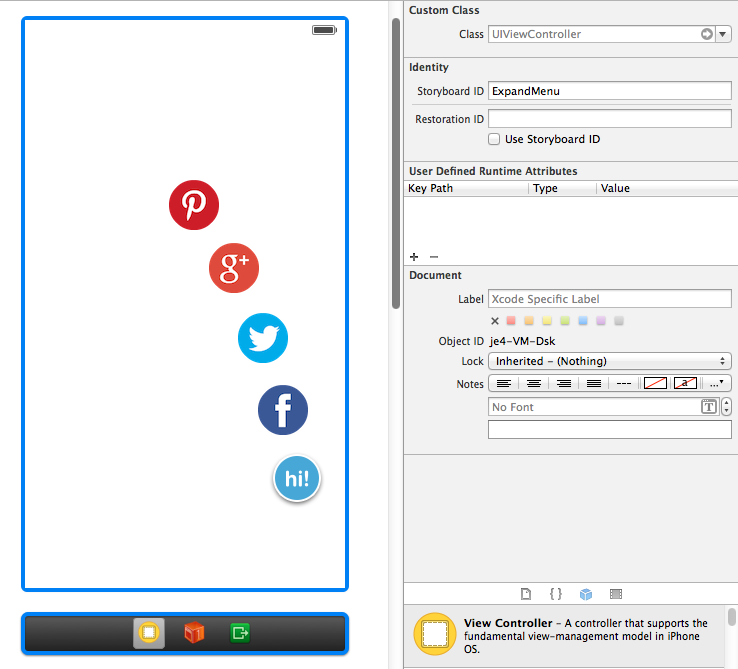
Add a stand-alone UIViewController object in Storyboard with your given ID. In this example we define its Storyboard ID as ExpandMenu:
Create BounceButtonView Class as a subclass of ASOBounceButtonView and define it the Class of Menu Item View:
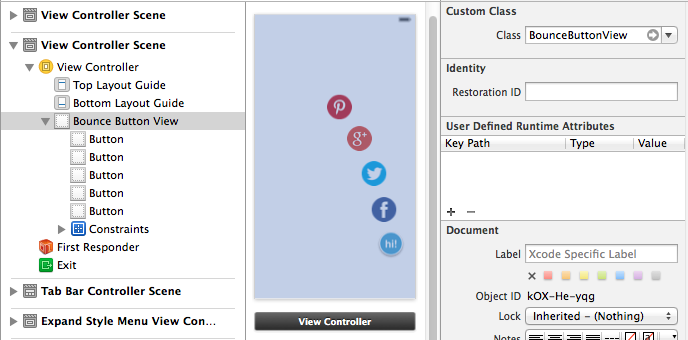
Set the outlet of all the buttons defined on Menu Item View to the BounceButtonView Class:
#import "ASOBounceButtonView.h"

@interface BounceButtonView : ASOBounceButtonView

@property (weak, nonatomic) IBOutlet UIButton *menuItem1;
@property (weak, nonatomic) IBOutlet UIButton *menuItem2;
@property (weak, nonatomic) IBOutlet UIButton *menuItem3;
@property (weak, nonatomic) IBOutlet UIButton *menuItem4;

@end
Implementation
Set the designated UIViewController as the delegate of ASOBounceButtonView Class
#import <UIKit/UIKit.h>
#import "ASOTwoStateButton.h"
#import "ASOBounceButtonViewDelegate.h"
#import "BounceButtonView.h"

@interface ExpandStyleMenuViewController : UIViewController <ASOBounceButtonViewDelegate>

@property (strong, nonatomic) IBOutlet ASOTwoStateButton *menuButton;
@property (strong, nonatomic) BounceButtonView *menuItemView;

- (IBAction)menuButtonAction:(id)sender;
Set 'Two-State' effect to the Menu Button:
[self.menuButton initAnimationWithFadeEffectEnabled:YES]; // Set to 'NO' to disable Fade effect between its two-state transition
Acquire the Menu Item View from Storyboard:
// Get the 'menu item view' from storyboard
UIStoryboard *mainStoryboard = [UIStoryboard storyboardWithName:@"Main_iPhone" bundle:nil];
UIViewController *menuItemsVC = (UIViewController *)[mainStoryboard instantiateViewControllerWithIdentifier:@"ExpandMenu"];
self.menuItemView = (BounceButtonView *)menuItemsVC.view;
Add buttons as bounce buttons to the Menu Item View
NSArray *arrMenuItemButtons = [[NSArray alloc] initWithObjects:self.menuItemView.menuItem1,
                                self.menuItemView.menuItem2,
                                self.menuItemView.menuItem3,
                                self.menuItemView.menuItem4,
                                nil]; // Add all of the defined 'menu item button' to 'menu item view'
[self.menuItemView addBounceButtons:arrMenuItemButtons];
Set the animation starting point
The animation starting point is the Menu Button position. Send the Menu Button frame property to the Menu Item View on viewDidAppear event and every time there is a change in device orientation:
- (void)viewDidAppear:(BOOL)animated
{
    // Tell 'menu button' position to 'menu item view'
    [self.menuItemView setAnimationStartFromHere:self.menuButton.frame];
}

- (void)willAnimateRotationToInterfaceOrientation:
(UIInterfaceOrientation)toInterfaceOrientation
                                         duration:(NSTimeInterval)duration
{
    // Update 'menu button' position to 'menu item view' everytime there is a change in device orientation
    [self.menuItemView setAnimationStartFromHere:self.menuButton.frame];
}
Expand and collapsed the Menu Item View
- (IBAction)menuButtonAction:(id)sender
{
    if ([sender isOn]) {
        // Show 'menu item view' and expand its 'menu item button'
        [self.menuButton addCustomView:self.menuItemView];
        [self.menuItemView expandWithAnimationStyle:ASOAnimationStyleExpand];
    }
    else {
        // Collapse all 'menu item button' and remove 'menu item view'
        [self.menuItemView collapseWithAnimationStyle:ASOAnimationStyleExpand];
        [self.menuButton removeCustomView:self.menuItemView interval:[self.menuItemView.collapsedViewDuration doubleValue]];
    }
}
Add custom actions in the `Menu Item View' delegate method
- (void)didSelectBounceButtonAtIndex:(NSUInteger)index
{
    // Collapse all 'menu item button' and remove 'menu item view' once a menu item is selected
    [self.menuButton sendActionsForControlEvents:UIControlEventTouchUpInside];

    // Add your custom action for each selected 'menu item button' here
    NSLog(@"Menu Item %x is selected", (short)index];

}
Controls
Control the speed of each animated button:
@property (strong, nonatomic) NSNumber *speed;
Control the speed of fade-out effect when the view is collapsed:
@property (strong, nonatomic) NSNumber *fadeOutDuration;
Control the bouncing distance of each animated button:
@property (strong, nonatomic) NSNumber *bouncingDistance;
Control which animation style to be used
@property (nonatomic) ASOAnimationStyle animationStyle;
Animation Style
There three available Animation Style:
ASOAnimationStyleExpand provides an effect of growing where buttons movement follow the path of other buttons defined in its previous order:
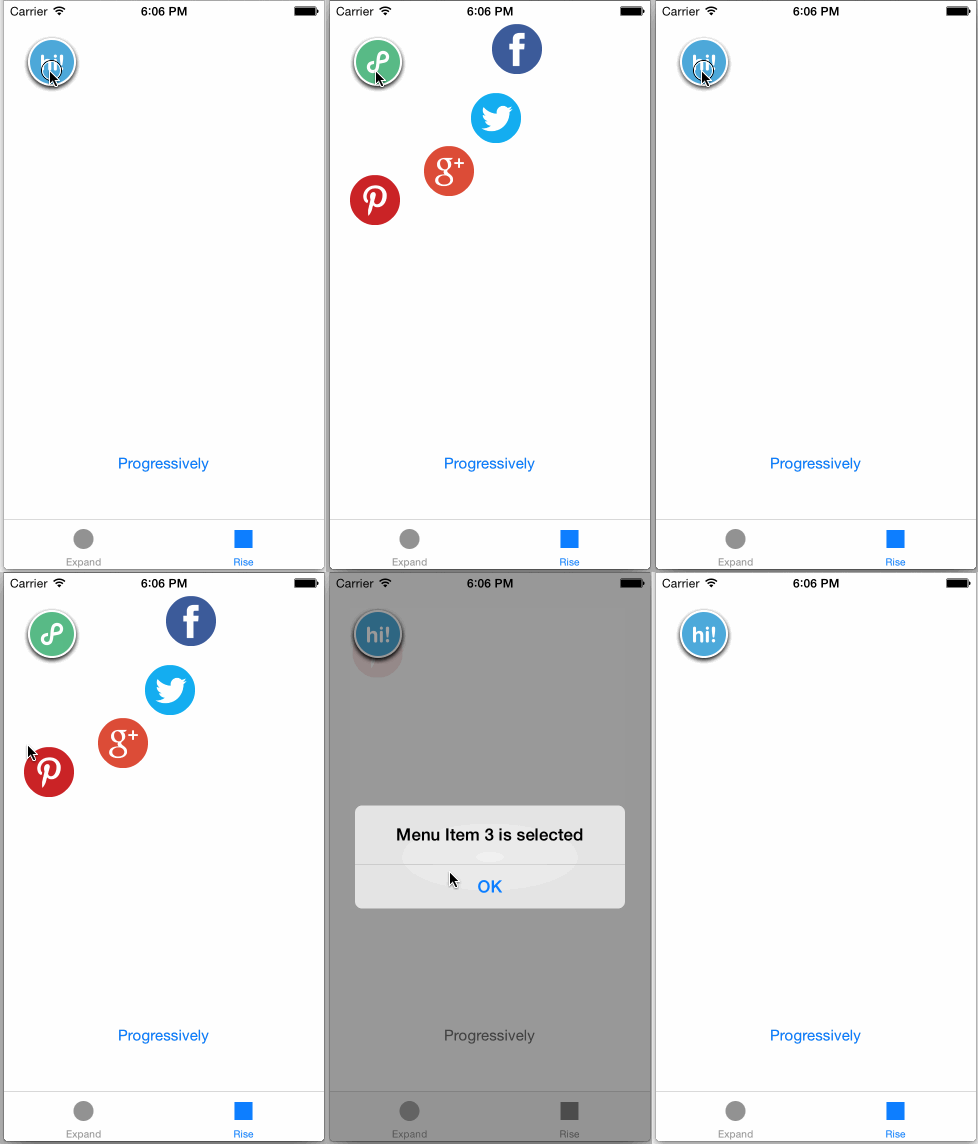
ASOAnimationStyleRiseProgressively provides an effect where all defined buttons move directly from starting positon to its final position. The movement pace of each buttons are slower gradually:
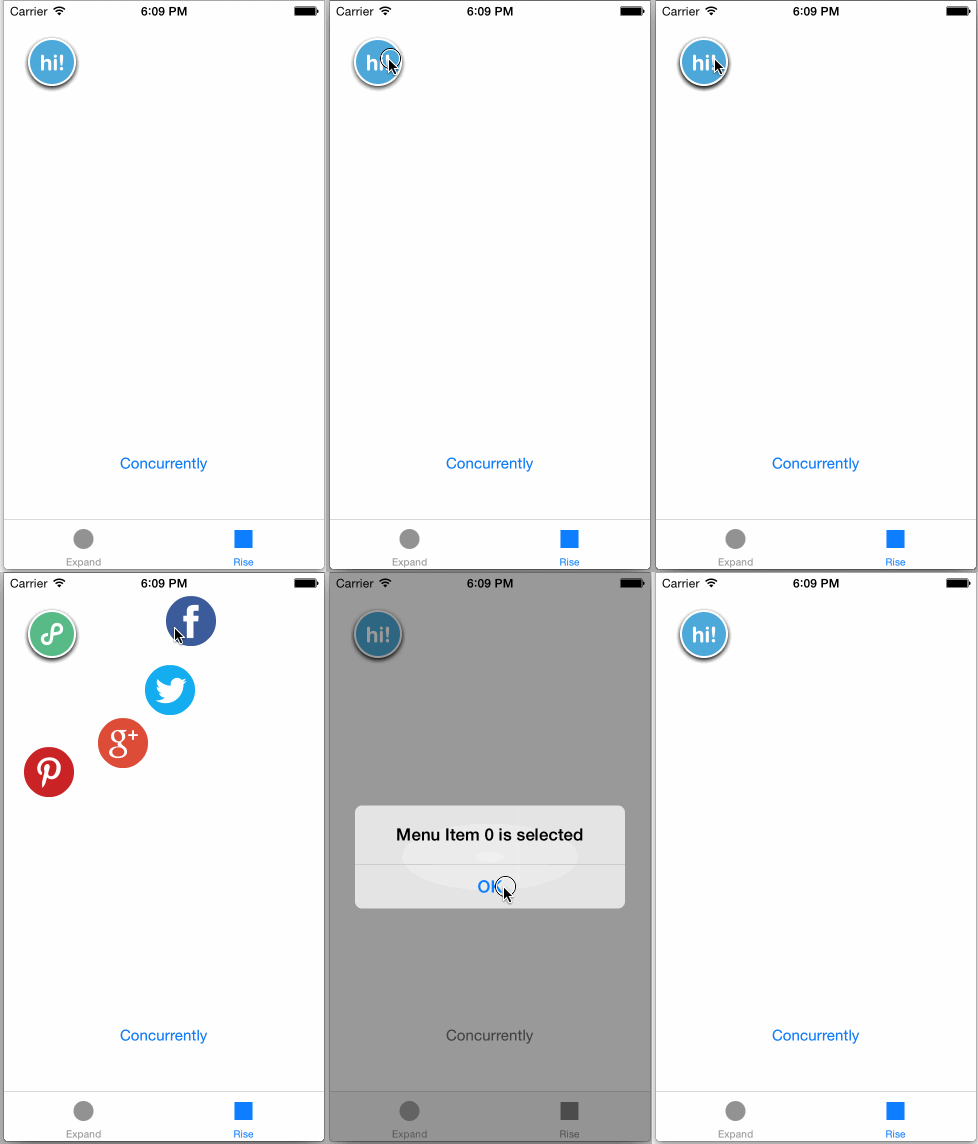
ASOAnimationStyleRiseConcurrently provides an effect where all defined buttons move directly from starting position to its final position at the same time:
Getting Help
If you need help using ASOAnimatedButton, please post a question on StackOverflow with the "ASOAnimatedButton" tag.
If you think you found a problem with ASOAnimatedButton, please post an issue. A sample project or fork of any of the examples demonstrating the problem will be helpful.
Author
Agus Soedibjo. Copyright (c) 2014 Agus Soedibjo, contact@soedibjo.com
License
ASOAnimatedButton is available under the MIT license. See the LICENSE file for more info.